10 Hidden Windows 11 Settings That Can Make Your Laptop Feel Faster
If your laptop has been getting slow lately I totally understand. It is really annoying. One day everything is fine and the day even opening a browser feels like a struggle. The apps take their time to open. The fan kicks in. You start wondering if the laptop is just done.
I have been there too. More than once honestly. Every time I thought, “Okay this is it I need a laptop.” Most of the time that was not actually true.
Windows 11 has a bunch of hidden settings that affect the performance of Windows 11. The funny thing is most people never touch these Windows 11 settings. They are just sitting there doing their thing in the background.
A few small tweaks can make things feel smoother. Not like magic. Noticeable enough that you go, “Hmm, okay that helped.”
Let us go through them.
1. Startup Apps. Turn off the noise
When you switch on your laptop half the apps you do not even use start running in the background. It is like they are invited to a party you did not plan.
What to do
Press Ctrl + Shift. Esc to open Startup apps. Just disable what you do not need.
Be a little selective here. If you do not need it instantly Windows 11 does not need to start it.
2. Storage Sense. Set it. Forget it
Over time your Windows 11 system collects junk files. Cache, stuff leftovers from apps. All that.
What to do
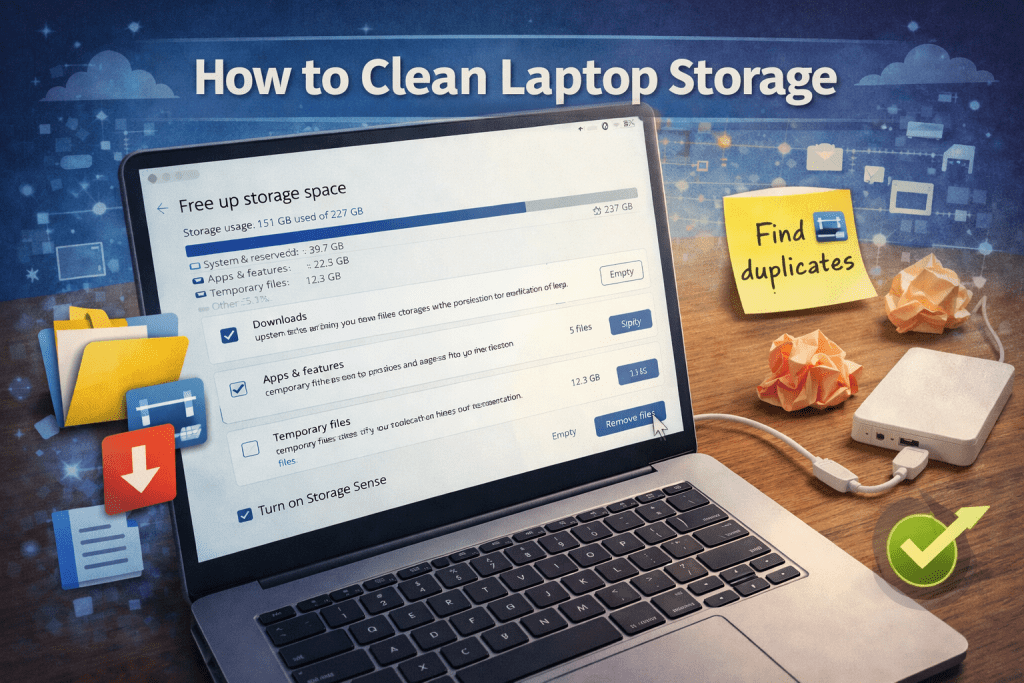
Go to Settings > System > Storage. Turn on Storage Sense.
It quietly cleans things up in the background. You do not really notice it working, which is the point.
3. Visual effects. Looks versus speed
Windows 11 looks nice with all the animations and smooth effects. On machines that beauty comes at a cost.
What to do
Search for Adjust the appearance and performance of Windows 11 then choose Adjust for performance.
It feels a bit plain after not going to lie. Windows 11 is faster.
4. Power mode. Give Windows 11 push
Windows 11 tries to balance battery and performance by default. Which is fine until you want speed.
What to do
Go to Settings > System > Power & Battery. Set Windows 11, to Best Performance.
If you are plugged in most of the time this one is worth it.
5. Background apps. Quietly eating your RAM
Some apps just refuse to stop working when you close them.
What to do
Go to Apps > Installed Apps open an apps settings. Stop it from running in the background.
You do not need everything all the time.
6. Search indexing. Search, slower Windows 11 system
Windows 11 keeps scanning your files so search results come quickly. Helpful, yes. It can also slow things down.
What to do
Open Indexing Options click Modify and remove folders you do not really search.
No need to index your drive if you only use a few folders.
7. Files. Digital clutter
These build up quietly. You do not see them. They are there.
What to do
Go to Settings > Storage > Temporary Files. Clean them up.
Feels like tidying your desk a bit.
8. Widgets. But not always needed
News weather updates. All nice. Not everyone uses them.
What to do
click taskbar → Taskbar Settings → turn off Widgets.
If you never open it it is just sitting there running in the background.
9. Windows 11 updates. The thing everyone delays
Nobody really loves updates. They do matter.
What to do
Go to Settings > Windows Update. Check for updates.
Some updates actually fix performance issues you did not even know were there.
10. Restart. The fix people ignore
This one sounds too basic. It works more often than you would expect.
A restart clears memory stops processes and just resets things a bit.
If your laptop feels off try this first before anything.
Bonus: SSD upgrade. Difference seriously
If your laptop still runs on a hard drive switching to a Solid-state drive can change everything.
It is one of those upgrades where you actually feel the difference immediately. Boot time drops apps open faster. The whole Windows 11 system just stops feeling tired.
Not exaggerating it is probably the biggest performance boost you can get without replacing the laptop.