How to Speed Up Your Windows Laptop
My Windows laptop was really slow, laggy and frustrating to use. I know I am not the one. I have had laptops that took a time to start. Programs froze randomly. Files took ages to open. It was seriously annoying. I had work to do.
The good news is that you do not always need a laptop. There are tricks you can try. They actually make a difference. I tested most of these myself. They really work.
1. Clean Up Your Hard Drive
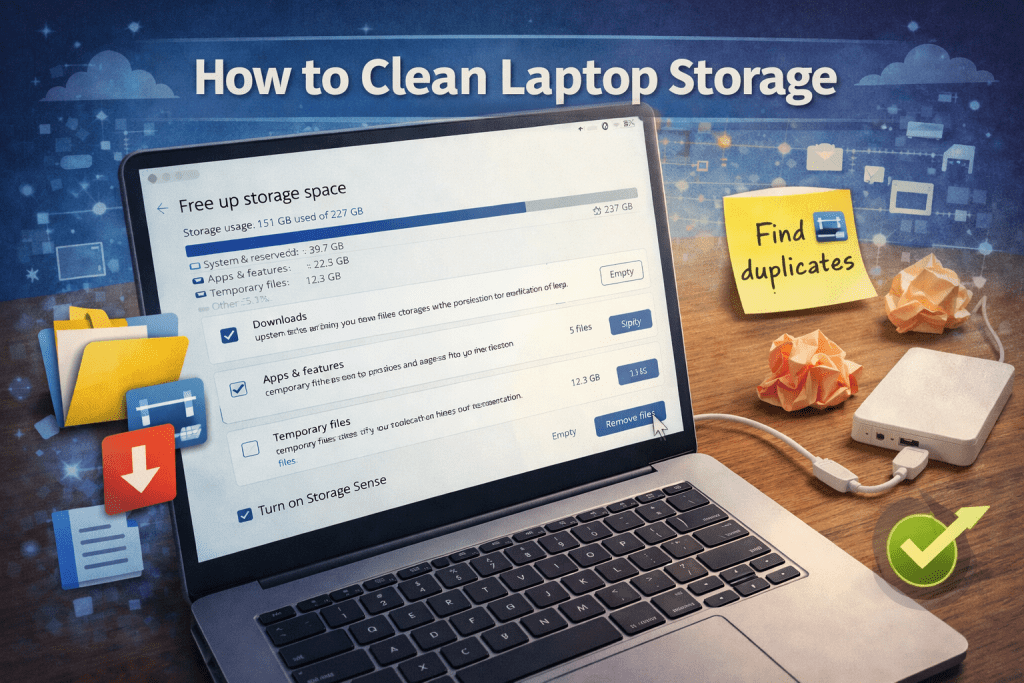
Laptops get slow because of clutter. Temporary files, downloads and old programs pile up over time.
Go through your files. Delete anything you do not need. Windows has a Disk Cleanup tool.
- Press Windows + S. Type “Disk Cleanup.”
- Pick your drive. Let it scan for junk files.
- Delete the ones you do not need.
Freeing up a few gigabytes makes your laptop feel lighter. It feels a bit faster.
2. Uninstall Programs You Do Not Use
We all install stuff we never use. Maybe a game you tried once. Maybe some software that came pre-installed.
Go to Settings. Go to Apps. Go to Apps & Features. Uninstall anything you do not use. You would be surprised how speed you can gain.
3. Limit Startup Programs
Some programs start automatically. Too many of these. Your laptop takes forever to start.
- Press Ctrl + Shift + Esc. Open Task Manager.
- Go to the Startup tab.
- Disable programs you do not need away.
Do not touch important stuff like your antivirus. Doing this alone often makes startup faster.
4. Update Windows and Drivers
Updating your system helps more than most people realize. Windows updates fix bugs. They improve speed. They patch security holes. Drivers matter too.
Go to Settings. Go to Update & Security. Go to Windows Update. Check for updates. Peek at your laptop manufacturers website for driver updates. It only takes a minutes.
5. Use Lighter Programs
Some apps are heavy on resources. Browsers with tons of extensions. Featured video editors. They can really slow things down.
Switching to alternatives for simple tasks can help a lot. Sometimes it is not the laptop. It is the programs you are running.
6. Scan for Malware
Malware can really drag your system down. Run a scan with Windows Defender. Run a scan with a trusted antivirus.
I once had a laptop that was crawling. A tiny malware program was eating CPU. Scanning and removing it made a difference.
7. Adjust Visual Effects
Windows looks nice with shadows. It looks nice with animations. It looks nice with transparency.. On older laptops these can slow things down.
- Press Windows + S. Type “Performance.”
- Open Adjust the appearance and performance of Windows.
- Pick Adjust for performance.. Manually select which effects to keep.
It might look a bit plain.. Your laptop will run smoother.
8. Add RAM or Switch to an SSD
If you do not mind upgrading hardware adding RAM or swapping your hard drive for an SSD can make a big difference.
More RAM helps when multitasking. More RAM helps when running apps. An SSD makes booting and loading programs faster.
Even an older laptop can feel like new with these upgrades.
9. Restart Regularly
I know it sounds obvious. Some people leave their laptops on for days. Restarting clears files. Restarting resets processes that might be slowing things down.
Try to restart least once a week. It actually helps more than you think.
Final Thoughts
A slow laptop is frustrating.. It does not always mean you need a new one. A little cleanup. Regular maintenance. A small hardware upgrade can make a difference.
Start small. Clean files. Uninstall unused programs. Limit startup apps. You will notice the difference fast. Later if you want try steps, like upgrading RAM or adding an SSD.
It does not take a tech genius to speed up your laptop. A bit of patience. Some regular care. You will have a machine that actually works the way it should. Less lag. Less stress. Way more productivity.