How to clean laptop storage
If your laptop has been running slow lately it is probably not your imagination. It happens. One day everything runs fine. Then suddenly even opening a folder feels like a big task.
Most of the time it is not some technical problem. It is just clutter. Many files, apps and random stuff sitting there doing nothing.
I once checked my laptop. Found old downloads from years ago. I did not even remember saving them.
Anyway let us go through this step by step. Nothing complicated. Just simple ways to clean laptop storage and get things back to normal.
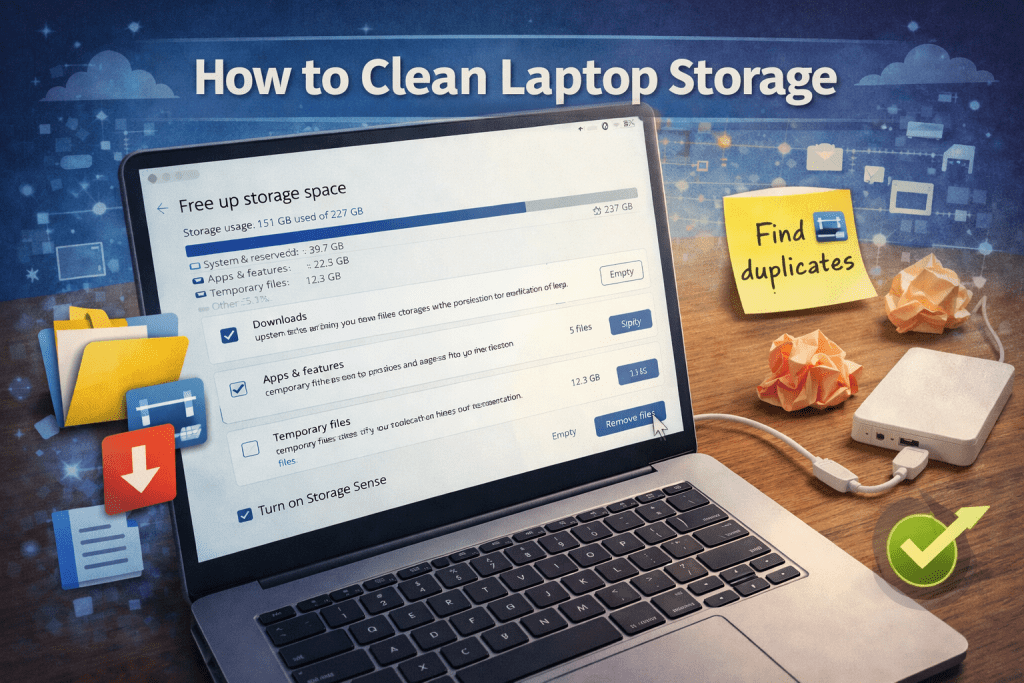
Why Laptop Storage Fills Up Fast
It is usually small things piling up over time.
Stuff like:
- Downloads you forgot about
- Old. Videos
- Apps you tried once and never opened again
- files
- Duplicate files
Individually they do not seem like much. Together laptop storage fills up.
Step 1: Check What Is Using Your Laptop Storage
Before deleting anything it helps to see where the space is going.
On Windows:
you go to Settings, System, then Storage.
On Mac:
you go to About This Mac, Storage.
You will get a breakdown. Apps, documents, system files. Sometimes one category is way bigger than expected.
That usually tells you where to start cleaning your laptop storage.
Step 2: Clean the Downloads Folder First
This is honestly the win.
Open your Downloads folder. Just scroll through it slowly. No rush.
You will probably see:
- PDFs
- Setup files
- Random images
- Files you only needed once
Delete what you do not need.
A small tip: by file size. The big files stand out immediately.
Step 3: Remove Apps You Do Not Use
This one requires a bit of honesty.
If you have not used an app in months chances are you will not use it again.
On Windows:
you go to Apps, Installed Apps.
On Mac:
you go to the Applications folder.
Uninstall whatever feels unnecessary.
Some apps are surprisingly large. Removing a couple can free up a lot more space on your laptop storage than you expect.
Step 4: Clear Temporary Files
These are files your system creates in the background and never really cleans up properly.
On Windows:
you use Disk Cleanup or Storage Sense.
On Mac:
you go to Storage then Manage.
It is quick. You do not really have to think much. Just. Delete.
Step 5: Look for Files
This part can be a bit annoying.
Duplicates happen often than you think. Downloading the file twice copying things around backups.
You can:
- Check manually
- Or use a tool to find duplicates
Even removing a large duplicates makes a difference in your laptop storage.
Step 6: Move Files of Deleting
If you do not want to delete stuff that is fine.
Just move it else:
- External hard drive
- USB
- Cloud storage
Photos and videos usually take up the most space. Moving those can clear a big chunk of your laptop storage.
Step 7: Empty the Trash
This sounds obvious but a lot of people forget.
When you delete files they just sit in the recycle bin. Trash until you empty it.
I have seen laptops free up GB just from this step.
So do not skip it.
Step 8: Clean Up Your Desktop
If your desktop is full of files it can slow things down a bit too.
It just looks messy.
Move things into folders. Delete what you do not need. Even a quick cleanup helps.
Step 9: Try to Keep It Clean
Once you have cleaned your laptop storage keeping it that way is the trick.
Nothing complicated small habits:
- Delete files when you are done with them
- Do not let downloads pile up
- Remove apps you stop using
- Do a cleanup every few weeks
It takes a few minutes saves a lot of trouble later.
Signs Your Laptop Storage Is Too Full
If you are unsure here are some signs:
- Laptop feels slow
- Apps take longer to open
- You see storage warnings
- Updates do not install properly
If any of this sounds familiar it is probably time to clean your laptop storage.
Final Thoughts
Learning how to clean laptop storage is not hard. It just takes a bit of time and attention.
Start small. Downloads, apps, trash. That alone can make a difference in your laptop storage.
You do not have to do everything, at either. 20 Minutes of cleanup helps your laptop storage.