Canva vs Photoshop for Beginners - Which Is Better in 2026?
Canva vs Photoshop for beginners is one of the most common debates in the design world today. Both are powerful design tools, but they serve very different purposes and skill levels. If you are just starting out with design, choosing the right tool can save you time, money, and a lot of frustration.
In this detailed guide, I will compare Canva and Photoshop side by side. I created the same three designs in both tools an Instagram post, a YouTube thumbnail, and a simple flyer to see how they stack up in real-world use. I will explain what each tool does best, who it is for, and which one you should choose based on your needs in 2026. For a practical Canva walkthrough, read our Canva beginner guide.
The question matters because the wrong choice can either leave you frustrated with a tool that is too complex or limited by one that cannot grow with your skills. Understanding the fundamental differences between these platforms helps you make a decision you will not regret.
What Is Canva?
Canva is a browser-based design platform that makes creating graphics incredibly easy. You do not need any design experience to get started. It offers thousands of templates for social media posts, presentations, posters, flyers, resumes, and more. For most beginners, Canva represents the accessible entry point into design.
Canva is popular because it is simple, affordable, and accessible. You can use it for free or upgrade to Canva Pro for additional features like brand kits, background removal, and premium templates. The free plan alone gives you enough to create professional-looking designs for personal and small business use. Check Canva's official website for current features.
I have been using Canva for over two years, and it remains my go-to tool for quick designs. The learning curve is practically you can create your first design within minutes of opening the application. This accessibility is Canva's greatest strength in the Canva vs Photoshop for beginners comparison.
What Is Photoshop?
Adobe Photoshop is the industry standard for photo editing and graphic design. It has been around for decades and is used by professional photographers, graphic designers, and digital artists worldwide. In the Canva vs Photoshop for beginners conversation, Photoshop represents the professional-grade option.
Photoshop offers unmatched control over every aspect of an image. From layers and masks to advanced color grading and retouching, it gives you full creative freedom. However, it comes with a steep learning curve that can be overwhelming for newcomers. I spent several months learning Photoshop before I felt comfortable using it for anything beyond basic edits. Adobe explains the tool on its official Photoshop page.
The depth of Photoshop's capabilities is both its greatest asset and its biggest barrier to entry. There are hundreds of tools, dozens of panels, and countless features that most beginners will never use. This complexity is precisely why the choice matters so much for people just starting out.
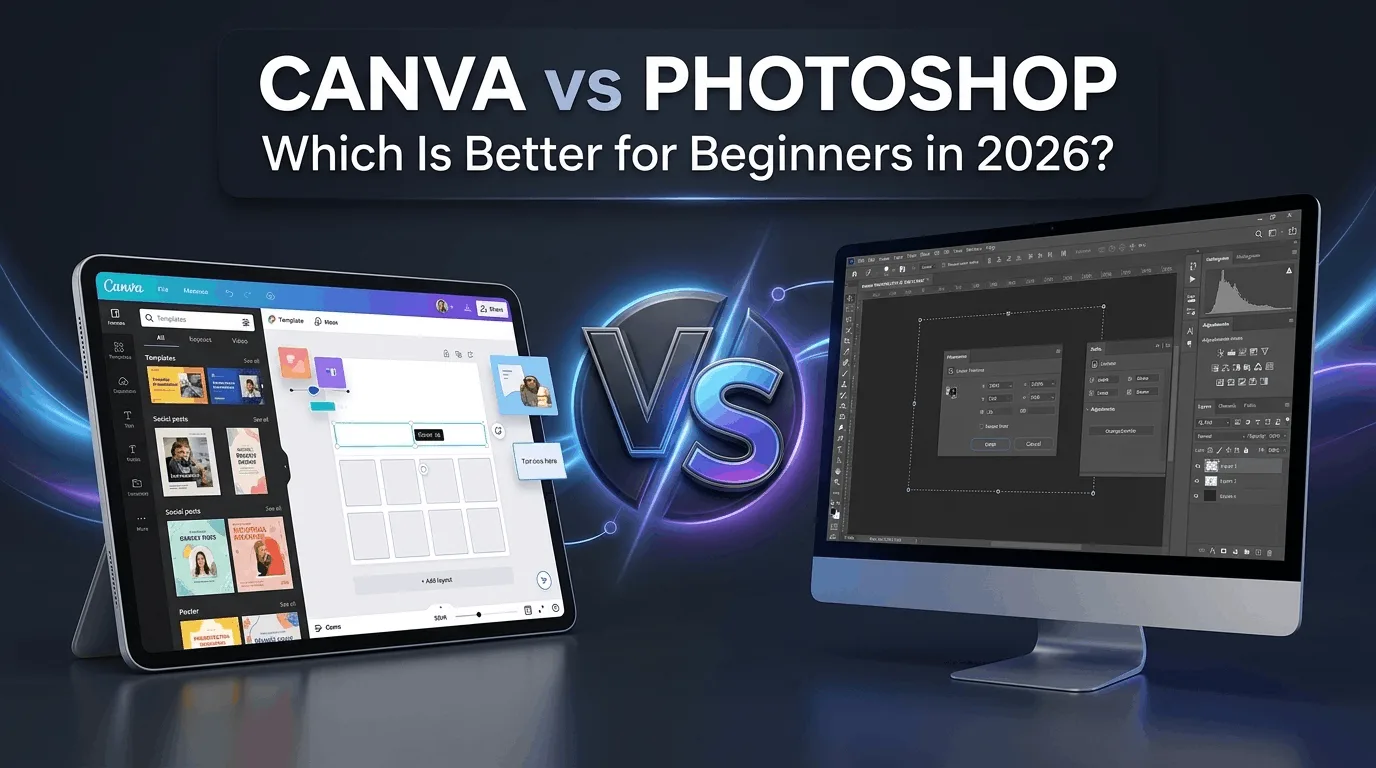
Canva vs Photoshop for Beginners: Key Differences
Understanding the core differences between these two tools will help you make the right choice.
1. Ease of Use
Canva is designed for beginners. Its drag-and-drop interface is intuitive and requires no training. You can create a professional-looking design in minutes. I have watched people with zero design experience create impressive social media graphics within their first session.
Photoshop, on the other hand, has a complex interface with hundreds of tools and menus. It takes weeks or months to become comfortable with it. Even simple tasks like removing a background or adding text require learning specific tools and techniques. The gap in ease of use is enormous.
2. Pricing
Canva offers a generous free plan that covers most basic needs. Canva Pro costs around $12.99 per month and unlocks premium features. For the Canva vs Photoshop for beginners comparison, this pricing structure is significant.
Photoshop requires a subscription to Adobe Creative Cloud, which starts at about $22.99 per month. There is no free version. Over a year, that is roughly $276 compared to Canva's free option or $156 for Canva Pro. For students and hobbyists, this cost difference is substantial.
3. Features and Flexibility
Canva is great for quick designs, social media content, and simple projects. It has pre-made templates and elements that make design effortless. For most beginner use cases, Canva's feature set is more than sufficient.
Photoshop offers far more advanced features. You can manipulate images at the pixel level, create complex composites, and work with RAW files. It is the go-to tool for professional photo editing. The comparison in features clearly favors Photoshop for advanced work, but most beginners do not need these capabilities.
4. Learning Curve
Canva has virtually no learning curve. If you can use a web browser, you can use Canva. This makes it the obvious choice when speed and simplicity matter.
Photoshop has a steep learning curve. Tutorials and courses are available, but it takes time to master. I recommend budgeting at least a few hours per week for several weeks if you want to become proficient with Photoshop.
5. Output Quality
For simple graphics and social media, Canva produces excellent results. However, for high-resolution print work or detailed photo editing, Photoshop is superior. The quality gap only matters for professional-grade work for everyday designs, Canva is more than adequate.
I tested both tools by creating the same Instagram post. The Canva version took five minutes and looked professional. The Photoshop version took twenty minutes and looked slightly more polished, but the difference was marginal for social media purposes. For more design fundamentals, see our guide to creating professional designs with Canva.
6. Collaboration
Canva excels at collaboration. You can share designs with team members, leave comments, and work on projects together in real time. This makes it ideal for teams and group projects.
Photoshop's collaboration features are more limited. While Adobe has added some sharing capabilities, they do not match Canva's seamless team workflow. For the Canva vs Photoshop beginners comparison in collaboration, Canva wins decisively.
When Should You Choose Canva?
Canva is the better choice if you:
Are a complete beginner with no design experience Canva's templates give you professional results immediately
Need quick social media posts or simple graphics Canva is optimized for these common use cases
Want a free or low-cost design solution free plan is remarkably capable
Do not need advanced photo editing or manipulation Canva handles basic edits well
Collaborate with a team on design projects Canva's sharing and collaboration features are unmatched
Need to produce content quickly and consistently templates and brand kits speed up the process significantly
For the vast majority of beginners, Canva is the right answer. It gets you producing quality work immediately without the frustration of learning complex software. Compare Adobe's current plans on its official Creative Cloud pricing page.
When Should You Choose Photoshop?
Photoshop is the better choice if you:
Want to learn professional graphic design or photo editing as a career or serious hobby
Need advanced features like layers, masks, and RAW editing for professional-quality work
Work in a creative agency or studio where Photoshop proficiency is expected
Create complex composites or digital art that require precise control
Need pixel-level control over your images for print or high-resolution output
If you see yourself pursuing design professionally, learning Photoshop eventually makes sense. But for beginners, starting with Canva and transitioning to Photoshop later is a much gentler learning path.
Can You Use Both Together?
Absolutely. Many designers use Canva for quick tasks and social media graphics, then switch to Photoshop for more complex projects. They complement each other well. This hybrid approach is common among professionals who need to produce content quickly while maintaining the ability to handle complex design tasks. For video thumbnails and clips, explore our guide to the best free video editing software.
In the Canva vs Photoshop for beginners debate, using both tools is often the most practical answer. Canva for everyday designs, Photoshop for specialized work. Over time, you will naturally develop a sense of which tool is appropriate for each project.
My experience creating the same designs in both tools
To give you a concrete comparison, I created three designs using both Canva and Photoshop:
Instagram post: Canva took 5 minutes, Photoshop took 18 minutes. The Canva version looked great and was ready to post. The Photoshop version was slightly more refined, but the difference was barely noticeable on a phone screen.
YouTube thumbnail: Canva took 8 minutes, Photoshop took 25 minutes. Canva's thumbnail templates are excellent and produced a professional result. Photoshop gave me more control over text effects and shadows, but the extra time was not justified for a thumbnail.
Business flyer: Canva took 12 minutes, Photoshop took 40 minutes. This is where Photoshop's capabilities started to show. The flyer had more nuanced typography and better print-ready formatting. But for digital distribution, Canva's version was perfectly adequate.
The pattern was consistent: Canva produced results faster with less effort, while Photoshop offered more control at the cost of significantly more time. For beginners, the comparison clearly favors Canva for most everyday design needs.
Frequently Asked Questions
Is Canva really free?
Yes. Canva offers a free plan that includes thousands of templates, millions of stock photos, and all the essential design tools you need. Canva Pro adds premium features like background removal and brand kits, but the free plan is more than sufficient for most beginners. In the Canva vs Photoshop for beginners comparison, Canva's free option is a massive advantage.
Can I learn Photoshop on my own?
Yes, but it takes time and patience. There are thousands of free tutorials on YouTube and structured courses on platforms like Udemy and Skillshare. I recommend starting with basic tools selection, layers, and text before moving to advanced features. Budget at least a few weeks of regular practice before you feel comfortable with Photoshop.