Best Chrome Extensions for Productivity
Finding the best Chrome extensions for productivity can completely change how you work online. Chrome extensions are small add-ons that sit in your browser and help you do things faster, stay focused, and avoid distractions. The right extensions can save you hours every week. The wrong ones can slow down your browser and clutter your workflow.
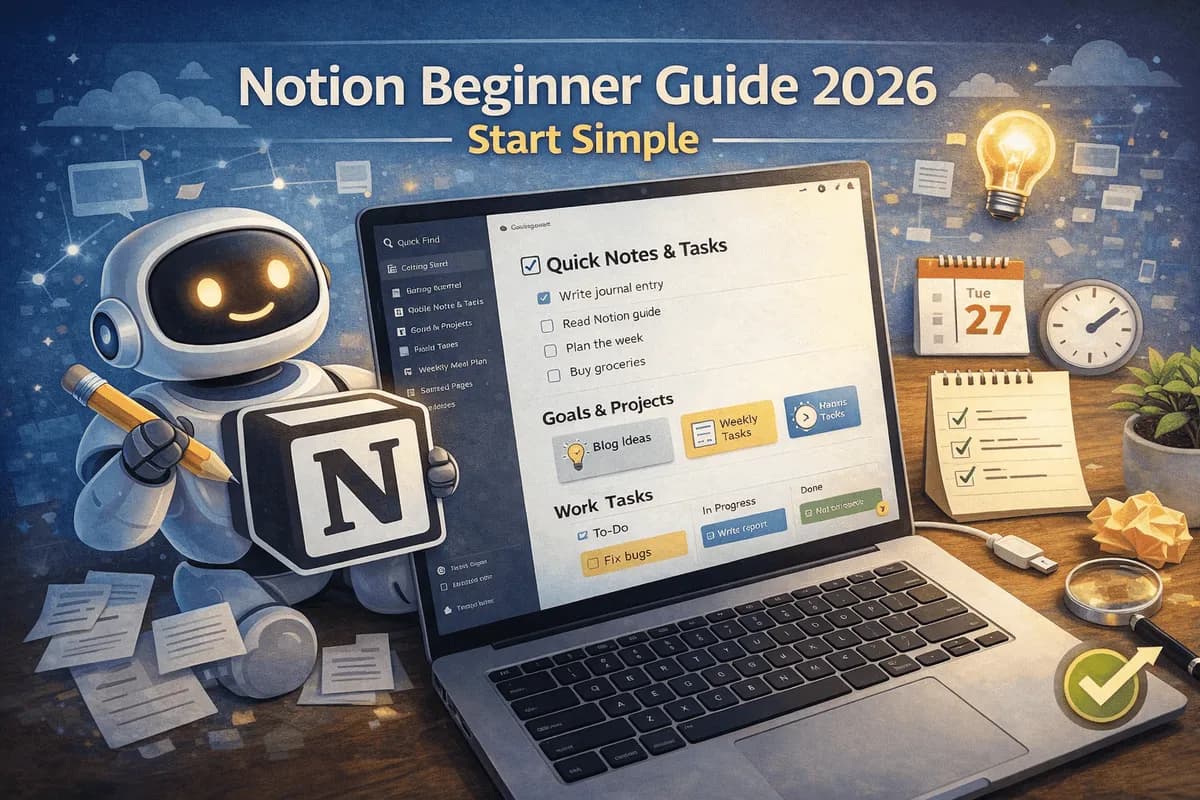
I tested over a dozen Chrome extensions over the past three months. I kept the ones that genuinely improved my productivity and deleted the rest. In this guide, I will share the best Chrome extensions for productivity that actually made a difference, explain what each one does, and help you choose the ones that fit your work style. If you use Notion for organizing your work, start with our Notion beginner guide.

Why Chrome Extensions Matter for Productivity
Most people spend a significant portion of their day in a web browser. Whether you are writing emails, researching topics, managing projects, or collaborating with a team, Chrome is likely where you do your work. Chrome extensions enhance this experience by adding features that Chrome does not offer natively.
The best Chrome extensions for productivity work quietly in the background. They block distracting websites, improve your writing, save articles for later, track your time, and organize your tabs. You do not need to think about them constantly. They just make your daily tasks a little easier.
The key is to install only the extensions you actually need. Too many extensions slow down your browser and create clutter. I recommend starting with two or three and adding more only if you find a genuine need.
1. StayFocusd
StayFocusd is one of the best Chrome extensions for productivity if you struggle with distractions. It lets you set time limits for specific websites. Once your allotted time runs out, those sites are blocked for the rest of the day. Install extensions through the official Chrome Web Store and review the publisher before adding them.
The setup is simple. You list the websites you want to limit, set a daily time allowance, and StayFocusd does the rest. You can set it to block entire sites or specific pages. The "Nuclear Option" feature blocks all distracting sites for a set period with no way to override it.
I started using StayFocusd because I was spending too much time on social media during work hours. Within a week, I noticed I was getting more done. The forced break from distracting sites helped me maintain focus on important tasks.
Best for: Blocking time-wasting websites and maintaining focus during work hours.
2. Grammarly
Grammarly is an AI-powered writing assistant that works directly in your Chrome browser. It checks your spelling, grammar, punctuation, and tone in real time. You can use it in Gmail, Google Docs, Slack, LinkedIn, and almost any other website where you type.
What makes Grammarly one of the best Chrome extensions for productivity is its ability to improve your writing without interrupting your flow. It highlights errors as you type and suggests corrections with a single click. The premium version also offers full-sentence rewrites, tone adjustments, and clarity improvements.
I have been using Grammarly for years, and it has saved me from countless embarrassing mistakes in emails and messages. The free version handles most basic needs, while the premium plan adds advanced features.
Best for: Improving writing quality across all websites and apps in Chrome.
3. OneTab
OneTab solves a problem that almost everyone has: too many open tabs. When your browser is cluttered with dozens of tabs, it becomes hard to find what you need, and Chrome uses more memory. OneTab converts all your open tabs into a single list with one click.
You can restore individual tabs or all tabs at once. The list persists even if you close Chrome, so you can come back to your tab collection later. OneTab also lets you share your tab list with others, which is useful for group projects.
I used to keep twenty or thirty tabs open at all times. OneTab reduced that to almost zero. My browser runs faster, and I can find the pages I need much more quickly. It is one of the best Chrome extensions for productivity for anyone who works with multiple research sources.
Best for: Managing tab overload and reducing browser memory usage.
4. Todoist
Todoist is a task management app with a Chrome extension that makes it easy to add and manage tasks without leaving your browser. You can quickly add a task from any webpage, set due dates, organize tasks into projects, and check them off as you complete them. Learn more on Todoist's official product page.
The extension adds a small icon to your Chrome toolbar. Click it to see your task list, add new items, or view what is due today. You can also right-click on any webpage to add it as a task, which is great for bookmarking articles you want to read later.
What makes Todoist one of the best Chrome extensions for productivity is its simplicity. It does not try to be a project management tool. It is a clean, focused way to keep track of what you need to do. The free plan handles most personal task management needs.
Best for: Quick task management and adding tasks from any webpage.
5. Momentum
Momentum replaces Chrome's default new tab page with a personalized dashboard. Each time you open a new tab, you see a beautiful background image, the current time, a daily focus goal, weather information, and inspirational quotes.
It sounds simple, but the impact on your mindset is surprisingly significant. Instead of opening a blank page or a cluttered news feed, you get a calm, focused start to every browsing session. You can set a daily focus that reminds you of your most important task.
Momentum is one of the best Chrome extensions for productivity because it creates a small moment of intentionality every time you open a new tab. Over time, that small shift in how you start each browsing session adds up to better focus throughout the day.
Best for: Creating a focused, distraction-free new tab experience.
6. Clockify
Clockify is a free time-tracking extension that helps you understand where your time actually goes. You can start and stop timers for different tasks, categorize your work, and generate reports that show how you spend your hours.
The Chrome extension makes time tracking effortless. Click the icon when you start a task, and click it again when you finish. Clockify logs the time and associates it with the project or task you specify. Over time, you get a clear picture of which activities consume the most time.
I was surprised to discover how much time I spent on email versus actual focused work. Clockify helped me identify those patterns and make adjustments. It is one of the best Chrome extensions for productivity for anyone who wants to be more intentional with their time.
Best for: Tracking time spent on tasks and identifying productivity patterns.
7. Notion Web Clipper
If you use Notion for notes and knowledge management, the Notion Web Clipper extension lets you save any webpage directly into your Notion workspace. You can clip entire pages, simplified articles, or bookmarks with a single click.
The extension adds a button to your Chrome toolbar. When you find an article or resource you want to save, click the button, choose a destination in your Notion workspace, and the content is saved automatically. You can add tags and notes before saving to keep things organized.
This is one of the best Chrome extensions for productivity for researchers, students, and anyone who collects web content. Instead of bookmarking articles you never read again, you can save them to Notion where they are searchable and organized.
Best for: Saving web articles and resources directly to your Notion workspace.
How to Choose the Right Extensions
You do not need all seven of these extensions. The best approach is to identify your biggest productivity challenge and choose the extension that addresses it.
Struggle with distractions? Install StayFocusd.
Write a lot of emails or messages? Add Grammarly.
Have too many tabs open? Try OneTab.
Need to manage tasks? Use Todoist.
Want a calmer browsing experience? Install Momentum.
Want to track your time? Try Clockify.
Use Notion for notes? Add the Web Clipper.
Best Practices for Using Chrome Extensions
To get the most from the best Chrome extensions for productivity, follow these guidelines:
Install only what you need. Too many extensions slow down your browser.
Review extension permissions. Only grant access to what is necessary.
Use each extension for at least a week before deciding if it is useful.
Periodically review your extensions and remove the ones you no longer use.
Keep your extensions updated for security and performance improvements.
Frequently Asked Questions
Do Chrome extensions slow down my browser?
Some extensions can impact performance, especially if you install many at once. The best Chrome extensions for productivity are lightweight and have minimal impact on speed. Stick to a few essential extensions to keep your browser running smoothly.
Are free Chrome extensions safe to use?
Extensions from the official Chrome Web Store are generally safe, but always check the permissions an extension requests. Look at user reviews and the developer's reputation before installing. Google provides a permissions guide explaining what extension access means. Avoid extensions that ask for unnecessary access to your browsing data.