How to Speed Up Windows Laptop (10 Easy Methods) 2026
A slow laptop can turn even the simplest task into a frustrating experience. Whether your machine takes forever to boot, freezes during video calls, or lags when opening applications, there are proven ways to speed up Windows laptop performance without spending a fortune. In this comprehensive guide, you will learn ten practical methods that restore speed and responsiveness to any Windows laptop, even older models that feel like they are on their last legs.
Every method listed below has been tested on real Windows machines running Windows 10 and Windows 11. Some take only a few seconds to implement, while others might require a bit more effort. The key is to start with the quick wins and work your way toward the bigger changes if needed.
Why Your Windows Laptop Gets Slow Over Time
Before diving into solutions, it helps to understand why laptops slow down in the first place. Over weeks and months, your system accumulates temporary files, unnecessary startup programs, outdated drivers, and fragmented data. Each of these factors chips away at performance until one day you realize your laptop takes three minutes to open a web browser.
Understanding the root causes makes it easier to speed up Windows laptop performance because you can target specific problems instead of guessing. The good news is that most slowdowns are reversible with a few strategic changes.
1. Clean Up Your Hard Drive with Disk Cleanup
Laptops get slow because of clutter. Temporary files, old downloads, system cache files, and leftover program data pile up over time and eat into your available storage space. When your hard drive is nearly full, Windows struggles to find space for virtual memory and temporary files, which directly impacts performance.
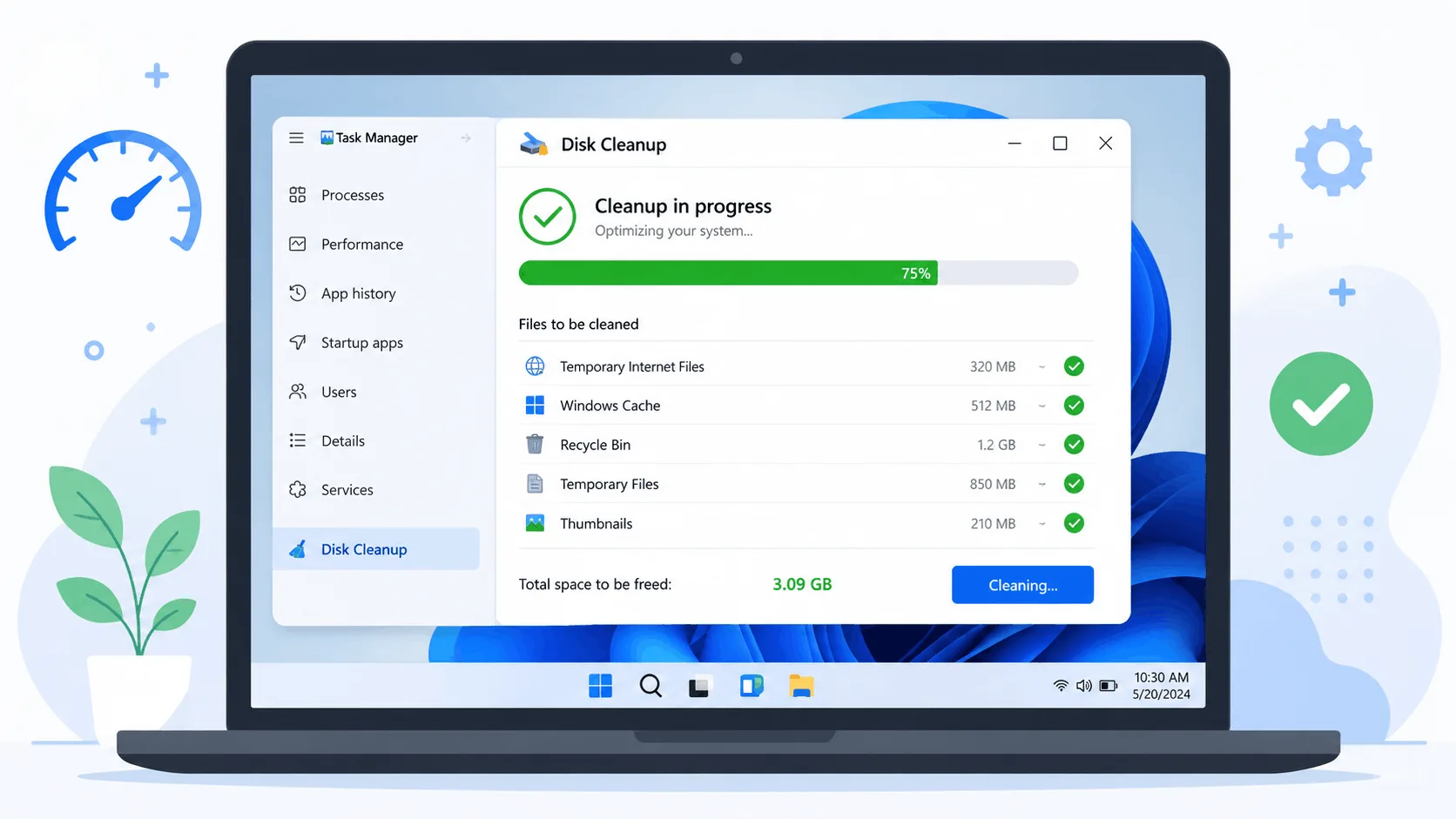
Windows has a built-in Disk Cleanup tool that makes this process simple. Here is how to use it to speed up Windows laptop performance:
Press Windows + S and type "Disk Cleanup" to open the tool
Select your main drive (usually C:) and let it scan for junk files
Check the boxes for temporary files, recycle bin contents, and system cache
Click OK and let it delete the selected files
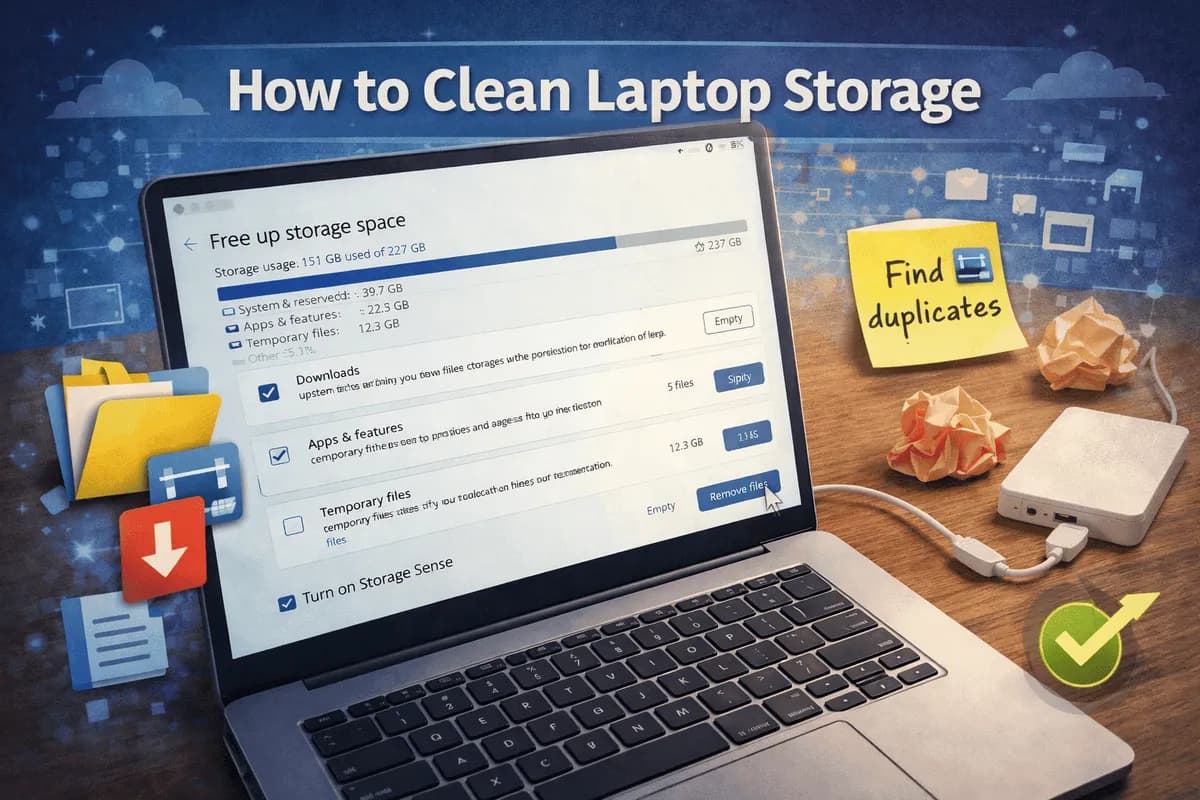
If your storage is still cluttered, check out our complete guide on how to clean laptop storage for more advanced techniques. Freeing up space on your drive is one of the fastest ways to speed up Windows laptop performance without any cost.
2. Uninstall Programs You Do Not Use
We all install software we never use again. Maybe it was a free trial, a game you played once, or an application that came pre-installed on your laptop. Every installed program takes up storage space and many run background processes that consume CPU and RAM.
Go to Settings > Apps > Installed Apps and sort the list by size or installation date. You will likely find several applications you forgot about. Uninstall anything you do not actively use. Removing even a few large programs can free up significant space and help speed up Windows laptop performance noticeably.
3. Limit Startup Programs Using Task Manager
Some programs configure themselves to start automatically when you turn on your laptop. Too many startup programs means your laptop takes forever to boot and continues running slow even after it finishes starting up.
Press Ctrl + Shift + Esc to open Task Manager
Click on the Startup tab to see all programs that launch at boot
Right-click any program you do not need at startup and select Disable
Do not disable critical system services or your antivirus software. Focus on things like chat apps, media players, and cloud sync tools that do not need to run immediately. Disabling unnecessary startup programs is one of the most effective ways to speed up Windows laptop boot times and everyday performance.
4. Update Windows and Device Drivers
Keeping your system updated is more important than most people realize. Windows updates fix bugs, patch security vulnerabilities, and often include performance improvements. Outdated drivers can cause hardware conflicts, random crashes, and sluggish performance.
Go to Settings > Windows Update and check for updates. Install everything available. Then visit your laptop manufacturer's website to download the latest drivers for your graphics card, chipset, and network adapter. This simple maintenance step can help speed up Windows laptop performance and prevent future issues.
5. Switch to Lighter Programs
Some applications are resource hogs. A web browser loaded with dozens of extensions, a full-featured video editor for simple trimming, or an antivirus suite with excessive real-time scanning can all slow your system down significantly.
Consider switching to lighter alternatives for everyday tasks. Use a lightweight browser like Edge or Brave instead of Chrome with forty extensions. If you edit videos, check out our roundup of best free video editing software that won't slow down your system. Try the built-in Windows Defender instead of a heavy third-party antivirus. Sometimes the problem is not your laptop itself but the programs you are running on it.
6. Scan for Malware and Adware
Malicious software can secretly consume your CPU, memory, and network bandwidth. Adware, spyware, and cryptocurrency miners are particularly common and can cause dramatic performance drops that users often mistake for hardware problems.
Run a full system scan using Windows Defender or a trusted antivirus program like Malwarebytes. If your laptop has been mysteriously slow, a malware infection could be the culprit. Removing malware is essential when trying to speed up Windows laptop performance.
7. Adjust Visual Effects for Better Performance
Windows includes visual effects like shadows, animations, transparency, and smooth scrolling. These make the interface look polished but consume GPU and CPU resources, especially on older or budget laptops.
Press Windows + S and type "Performance"
Select Adjust for best performance or manually choose which effects to keep
Your laptop might look slightly plainer, but it will run smoother and more responsively. This adjustment is especially helpful when trying to speed up Windows laptop machines that are five years old or more.
8. Add More RAM or Switch to an SSD
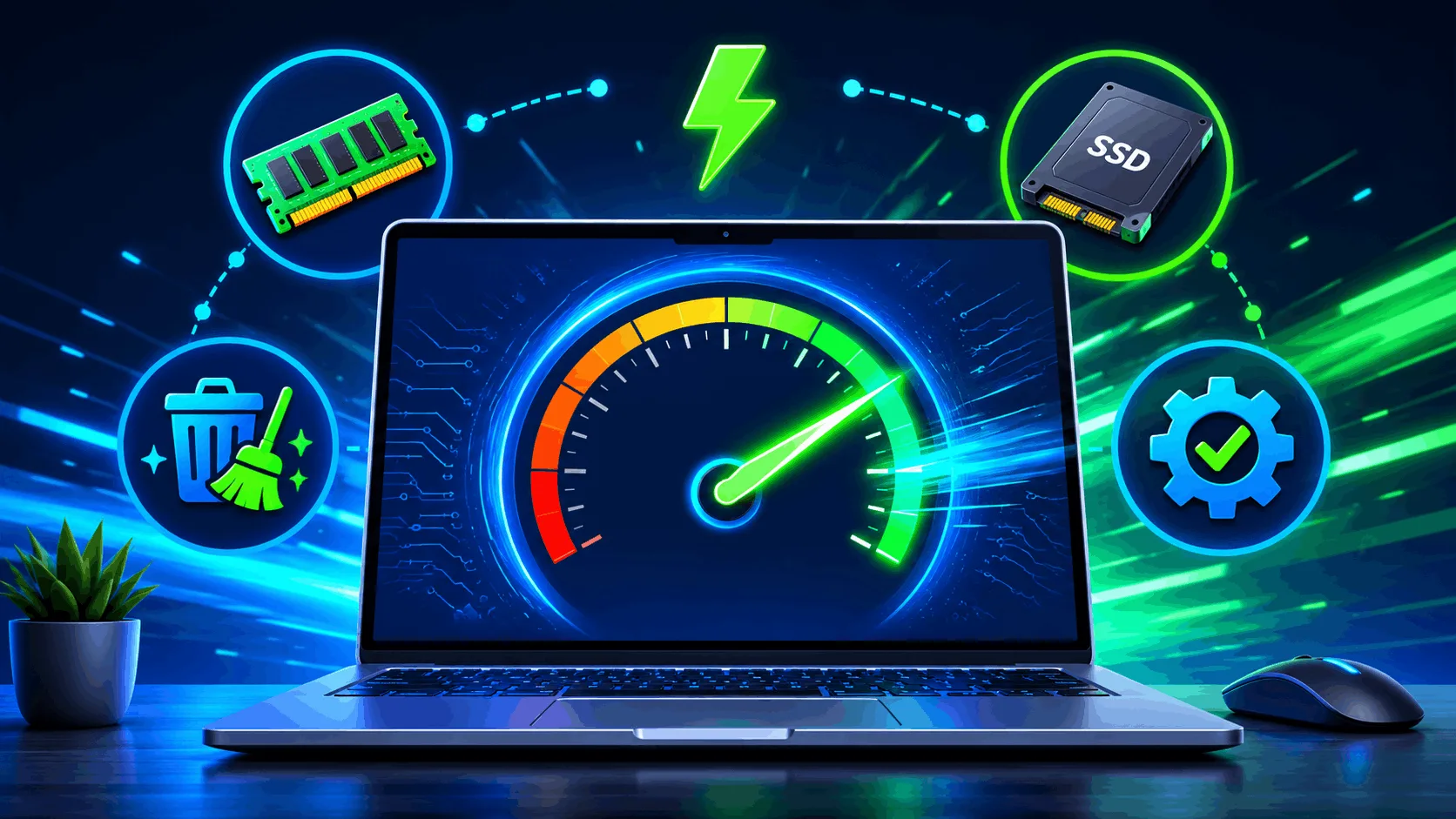
If software tweaks are not enough, hardware upgrades can make a dramatic difference. Adding more RAM allows your laptop to handle more applications simultaneously without slowing down. Switching from a traditional hard drive to a solid-state drive (SSD) is the single biggest performance upgrade you can make.
An SSD can reduce boot times from over a minute to under fifteen seconds. Application loading times improve dramatically, and the entire system feels more responsive. If your laptop still uses a mechanical hard drive, upgrading to an SSD is the best investment to speed up Windows laptop performance.
9. Restart Your Laptop Regularly
This sounds obvious, but many people leave their laptops running for days or even weeks without restarting. Over time, background processes accumulate, memory gets fragmented, and temporary files pile up. Restarting clears all of this and gives your system a fresh start.
Try to restart your laptop at least once a week. If you notice performance degrading during the day, a quick restart can often restore speed immediately. It is the simplest troubleshooting step and it works more often than you would expect.
10. Disable Unnecessary Background Services
Windows runs dozens of background services by default. Some of these are essential, but others are things you will never use. Services like the Print Spooler (if you do not print), Windows Search indexing (on older drives), and remote registry access can be safely disabled.
Open the Services app by pressing Windows + R, typing services.msc, and pressing Enter. Look through the list and research each service before disabling it. When in doubt, set it to manual instead of disabled. This fine-tuning approach helps speed up Windows laptop performance without risking system stability.
How to Keep Your Laptop Running Fast
Once you have speed up Windows laptop performance using the methods above, the key is maintaining that speed. Here are some ongoing habits that help:
Uninstall programs immediately after you stop using them
Keep at least 15-20% of your drive free at all times
Keep Windows Update regularly and do not postpone updates
Restart your laptop at least once a week
Run a malware scan once a month
Keep your startup programs list clean
These small habits prevent your laptop from slowing down again and save you from repeating the entire cleanup process.
When to Consider a New Laptop
Even with all these optimizations, some laptops are simply too old or underpowered for modern software. If your machine has less than 4GB of RAM, runs a mechanical hard drive, and is more than eight years old, you may reach the limits of what software optimization can achieve.
However, do not rush to buy a new laptop before trying every method in this guide. You might be surprised at how much life you can squeeze out of an older machine with the right tweaks. Many users report that their laptop feels like new after simply upgrading to an SSD and cleaning up their software.
Final Thoughts
Learning how to speed up Windows laptop performance does not require technical expertise or expensive tools. Start with the quick fixes like cleaning up disk space, disabling startup programs, and updating your system. If those do not provide enough improvement, move on to visual effects adjustments and hardware upgrades.
The most important thing is to take action instead of living with a slow laptop. Even 15 minutes of cleanup and optimization can make a noticeable difference. Your laptop will boot faster, open applications more quickly, and handle multitasking without the frustrating lag that slows you down throughout the day.
Frequently Asked Questions
How much RAM do I need to speed up my laptop?
For general use in 2026, 8GB of RAM is the recommended minimum. If you run multiple applications simultaneously, work with large files, or use virtual machines, 16GB is ideal. Upgrading from 4GB to 8GB can provide a noticeable performance improvement, especially when multitasking.
Will upgrading to an SSD really make my laptop faster?
Yes. Switching from a mechanical hard drive to an SSD is the single most impactful hardware upgrade you can make. Boot times typically drop from over a minute to under 15 seconds, and application loading times improve dramatically. Many users describe the difference as transforming their laptop into a completely different machine.