Notion Beginner Guide
If you have been searching for a way to organize your notes, tasks, projects, and ideas in one place, this Notion beginner guide is exactly what you need. Notion is a powerful all-in-one workspace that can replace multiple apps, but its flexibility can feel overwhelming when you first open it. This step-by-step walkthrough will take you from complete confusion to confidently using Notion for everyday productivity.
The reason most people struggle with Notion is not because it is complicated. It is because there are no instructions when you first open the app. You see a blank page and wonder what to do next. This Notion beginner guide eliminates that confusion by walking you through the core concepts, setup process, and practical use cases that matter most.
What Is Notion and Why Should You Use It?
At its core, Notion is a tool for organizing your life and work. It combines notes, tasks, databases, wikis, and project management into a single flexible platform. You can use Notion for:
Taking and organizing notes on any topic
Managing tasks and to-do lists with deadlines
Planning projects with timelines and milestones
Building personal dashboards and habit trackers
Creating knowledge bases and documentation
Collaborating with teams on shared workspaces
Think of Notion as a digital notebook that is far more powerful and flexible than any traditional note-taking app. It adapts to your workflow instead of forcing you to adapt to its structure.
Understanding the Three Core Concepts
Before you start building your setup, you need to understand three fundamental concepts that form the foundation of every Notion beginner guide. Once these click, everything else falls into place naturally.
1. Pages in Notion
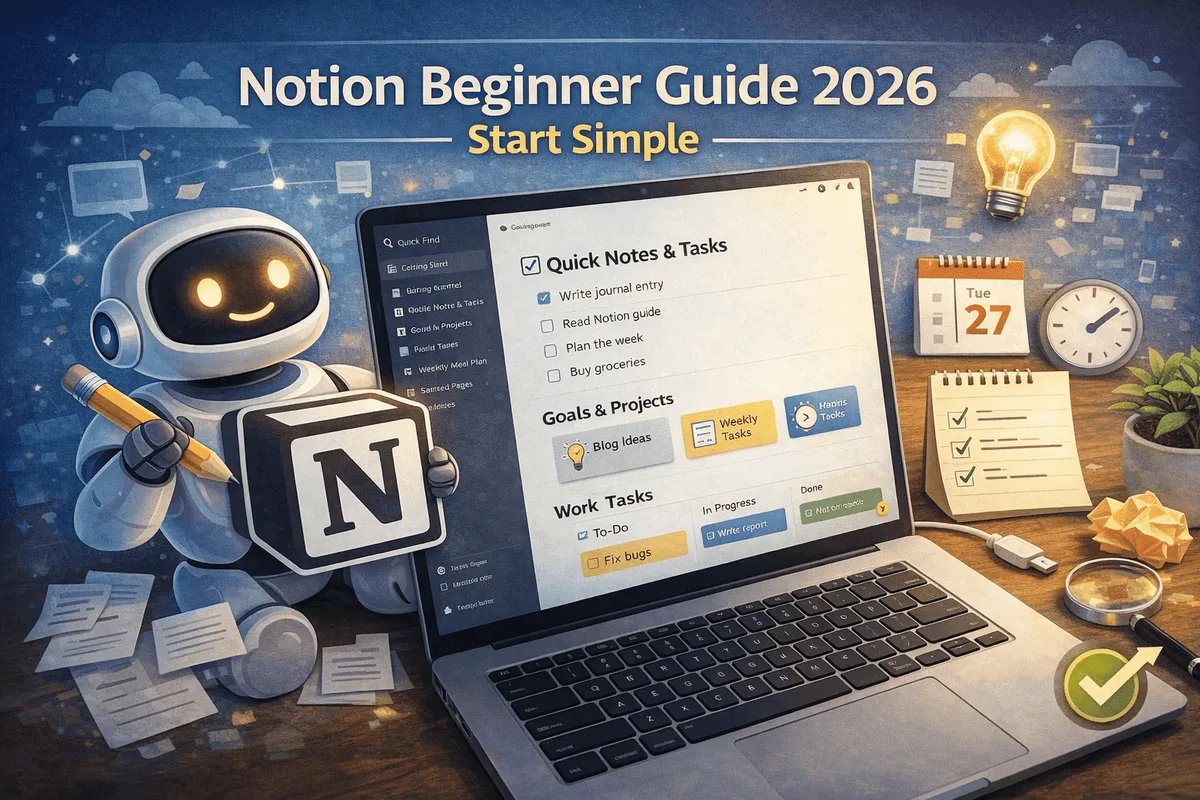
Everything in Notion lives on a page. Pages can contain other pages, creating a nested structure similar to folders but much more flexible. For example, you might have a main "Dashboard" page that contains linked pages for Tasks, Notes, Goals, and Projects. You can nest pages as deep as you want, creating organized hierarchies that match how you think.
2. Blocks in Notion
This is where Notion differs from traditional note-taking apps. Every piece of content on a page is a block. A paragraph is a block. A heading is a block. A to-do checkbox is a block. An image, a table, a toggle list, a code snippet, and even an embedded video are all blocks. You can drag and drop blocks to rearrange them, convert one type to another, and nest blocks inside each other.
This block-based system is what makes Notion so powerful. You are not limited to a rigid document structure. You can combine different block types on a single page to create exactly the layout you need.
3. Databases in Notion
A database in Notion is a structured collection of items that can be viewed as a table, board, calendar, timeline, gallery, or list. Common uses include task boards, content calendars, reading lists, project trackers, and CRM systems. Each entry in a database is its own page, which means you can add detailed content to every item.
Databases support filters, sorts, and formulas, making them incredibly powerful for managing structured information. This is the feature that separates Notion from simple note-taking apps and makes it a true productivity platform.
Step-by-Step Setup for Your First Notion Workspace
Follow these steps to set up your Notion workspace. This Notion beginner guide keeps things simple so you can start using Notion immediately without getting overwhelmed.
Step 1: Create Your Home Page
Start by creating one page and naming it "Home," "Dashboard," or "Workspace." This will be the central hub where everything lives. Think of it as your table of contents for all your Notion pages.
Step 2: Add Essential Sub-Pages
Inside your home page, create links to a few key pages:
Tasks for your to-do list and action items
Notes for meeting notes, ideas, and random thoughts
Goals for tracking personal or professional objectives
That is genuinely enough to start. Do not try to build an elaborate system on day one. Keep it simple and add pages as you discover what you actually need.
Step 3: Use Templates
Notion offers thousands of pre-built templates for almost every use case. Instead of building from scratch, browse the official Notion template gallery and use existing ones as starting points. You can always customize them later to match your preferences.
Step 4: Learn the Keyboard Shortcuts
Type a forward slash (/) anywhere on a page to see a list of all available block types. This is the fastest way to add content in Notion. Some essential shortcuts include:
/heading to add headings of different sizes
/todo to create checkboxes
/toggle to add expandable sections
/table to insert a database table
/callout to highlight important information
Practical Ways to Use Notion Every Day
You do not need to use every feature in Notion. Pick the use cases that solve your actual problems. Here are the most practical applications that beginners find helpful:
Daily Planner: A simple page with today's tasks, notes, and priorities. Open it in the morning, add items throughout the day, and review before finishing.
Reading List: Use a database to track books, articles, and resources you want to read. Add ratings and notes as you finish each item.
Content Calendar: If you create content for social media or a blog, a database with date properties helps you plan and track your publishing schedule.
Study Notes: Organize subjects, topics, and revision materials using nested pages and databases. Add tags for easy filtering during exam time.
Project Tracker: Even simple projects benefit from task lists with deadlines, status updates, and progress tracking.
Habit Tracker: Build a weekly or monthly tracker for habits like reading, exercise, or meditation using a Notion database.
Tips That Make Notion Easier to Use
These practical tips will help you get the most out of your Notion beginner guide experience and avoid common frustrations:
Use the slash command: Type / followed by the block type you want. This is the fastest way to add content without reaching for the mouse.
Drag and drop blocks: Hover over any block and grab the six-dot handle to move it around. Reorganizing content in Notion takes seconds.
Start small and grow: You do not need to understand every feature on day one. Learn the basics, then explore databases and advanced features as your needs evolve.
Try the mobile app: The Notion mobile app is surprisingly capable. You can capture ideas, check off tasks, and review notes from anywhere. For more alternatives, see our guide to the best free note-taking apps for Android.
Use it daily: Even five to ten minutes of daily use helps you build familiarity. The more you use Notion, the more natural it becomes.
Link pages together: Use the @ mention feature to link pages, creating connections between related content across your workspace.
Common Mistakes That Beginners Make
Avoid these pitfalls that almost every new Notion user encounters:
Trying to build a perfect system immediately: Start with a simple setup and improve it over time. Your needs will become clearer as you use the tool.
Watching tutorials without practicing: Notion is learned by doing. Follow along with tutorials but apply what you learn immediately.
Comparing your setup to others online: Notion setups shared on social media often look impressive but may be overly complex for your needs. Build what works for you.
Not using it consistently: Notion only becomes valuable when you use it regularly. Make it part of your daily routine.
Over-organizing from the start: You do not need seventeen categories and color-coded tags on day one. Simple systems work best when you are beginning.
Notion vs Other Note-Taking Apps
If you are wondering how Notion compares to apps like Evernote, Google Keep, or Apple Notes, here is the key difference. Traditional note-taking apps are designed for quick capture and simple organization. Notion is designed for building comprehensive systems that combine notes, tasks, databases, and project management in one place.
For simple note-taking, apps like Google Keep or Apple Notes might actually be faster. But if you want a single tool that can handle notes, tasks, project planning, and knowledge management, Notion is the stronger choice. This Notion beginner guide recommends starting with Notion if you want an all-in-one solution rather than juggling multiple apps. You can review current plan details on Notion's official pricing page before choosing a plan.
Is Notion Worth Using in 2026?
Yes, absolutely. Notion continues to improve and remains one of the most flexible productivity tools available. It will not magically fix your productivity, but if you use it consistently, it can genuinely help you stay organized, reduce mental clutter, and manage your tasks and projects more effectively.
The key is to approach Notion as a tool that grows with you. Start with the basics covered in this Notion beginner guide, use it a little every day, and gradually explore the features that matter most to your specific workflow.
Frequently Asked Questions
Is Notion free to use?
Yes. Notion offers a generous free plan that includes unlimited pages, blocks, and guests for individual use. The free plan covers everything most individuals need. Paid plans add features like team collaboration, advanced permissions, and increased file upload limits. Check Notion's Getting Started help center for the latest plan and feature guidance.
Can Notion replace Google Docs and Trello?
For many users, yes. Notion combines document editing, project management, and database functionality in a single tool. While specialized tools may have more advanced features in specific areas, Notion handles most tasks well enough to replace multiple apps for individuals and small teams.