How to Use AI Productivity Tools to Get More Done
A few months ago my week looked like this: drafting the same email three different ways, manually copying meeting notes into a doc, and losing twenty minutes every morning just figuring out what to prioritize. None of that is hard work it's just the kind of busywork that eats a day without you noticing.
That's the gap AI productivity tools are actually good at closing. Not replacing your job, just taking the repetitive parts off your plate so you spend more time on the work that actually needs a person. Below is how I use them now, broken down by the tasks they actually help with not a ranked list, just what to reach for and when.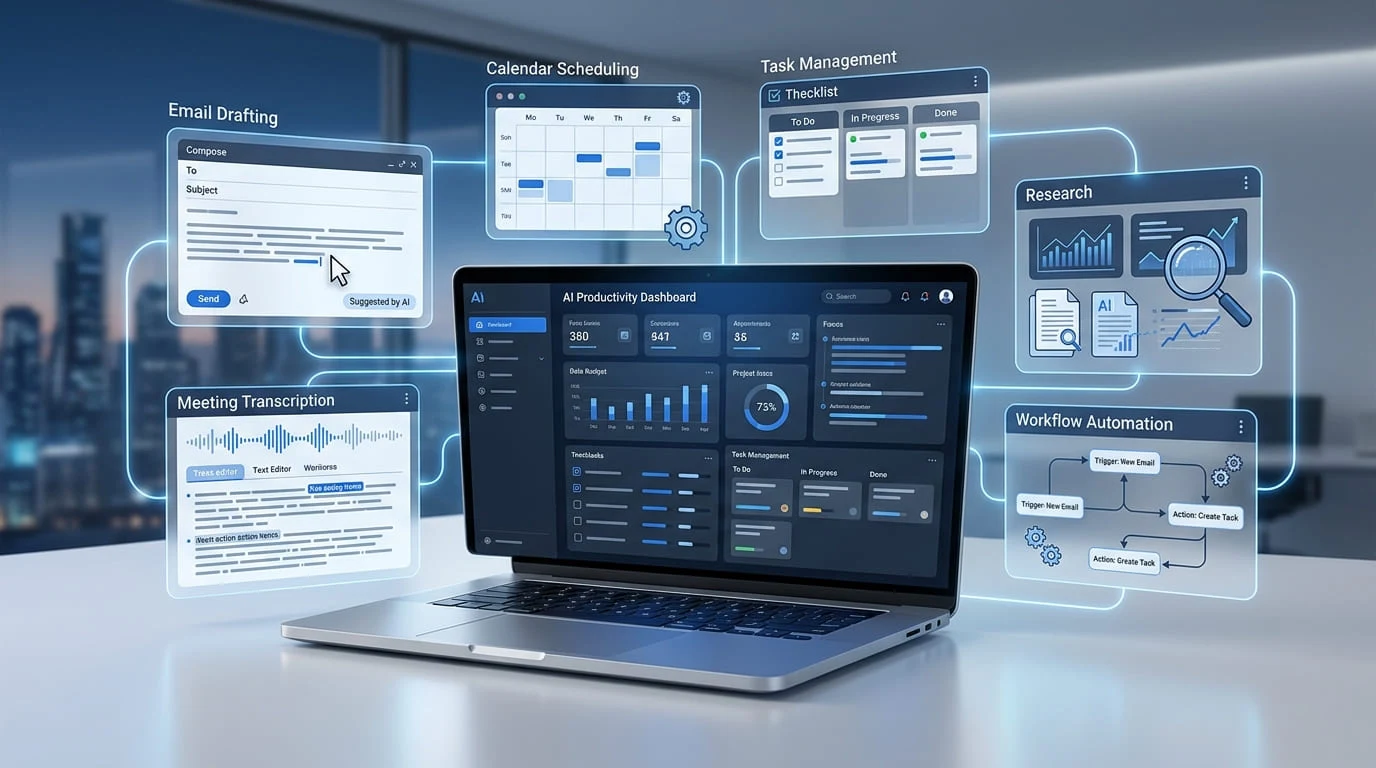
What Are AI Productivity Tools?
AI productivity tools are apps that use AI to speed up or automate routine work writing, scheduling, note-taking, research, and repetitive admin tasks. The difference from regular software is that they don't just store or organize your work, they actively do part of it: drafting a first pass, summarizing a call, or triggering the next step in a workflow without you touching it.
The time savings are real, but not evenly distributed. McKinsey's 2026 Global AI Survey found that knowledge workers using AI tools in production recover a median of 6.4 hours per week, with the biggest gains going to people who've actually changed how they work around the tool not just bolted it onto their old process.
Writing and Content Creation
This is the most obvious use case and still the one with the clearest payoff. AI writing tools are good at first drafts, tone adjustments, and clearing writer's block the kind of tasks where staring at a blank page costs more time than editing does.
If you're producing a lot of written content regularly, I put together a full breakdown of the best AI tools for content writing, covering tools like ChatGPT, Jasper, Claude, and Surfer SEO and where each one actually earns its keep.
Where this saves time: first drafts of emails, outlines, social captions, and repurposing one piece of content into five formats.
Scheduling and Calendar Management
AI scheduling tools remove the back-and-forth of "does Tuesday work?" by finding open slots across calendars automatically, and some can now reprioritize your day when a meeting gets moved. This is a smaller time save per instance, but it adds up fast if your week is meeting-heavy.
Where this saves time: finding meeting slots across time zones, auto-rescheduling when conflicts pop up, and protecting focus blocks on your calendar.
Meeting Notes and Transcription
This is the one that surprised me the most. AI meeting assistants that transcribe and summarize calls in real time mean you can actually be present in a conversation instead of frantically typing notes and you get a searchable record afterward, which is genuinely useful weeks later when you can't remember who agreed to what. It tracks with what Microsoft's 2026 Work Trend Index found more broadly AI taking over more execution work is freeing people up to focus on decisions and outcomes instead of admin.
Where this saves time: eliminating manual note-taking, generating action items automatically, and making past meetings searchable instead of forgotten.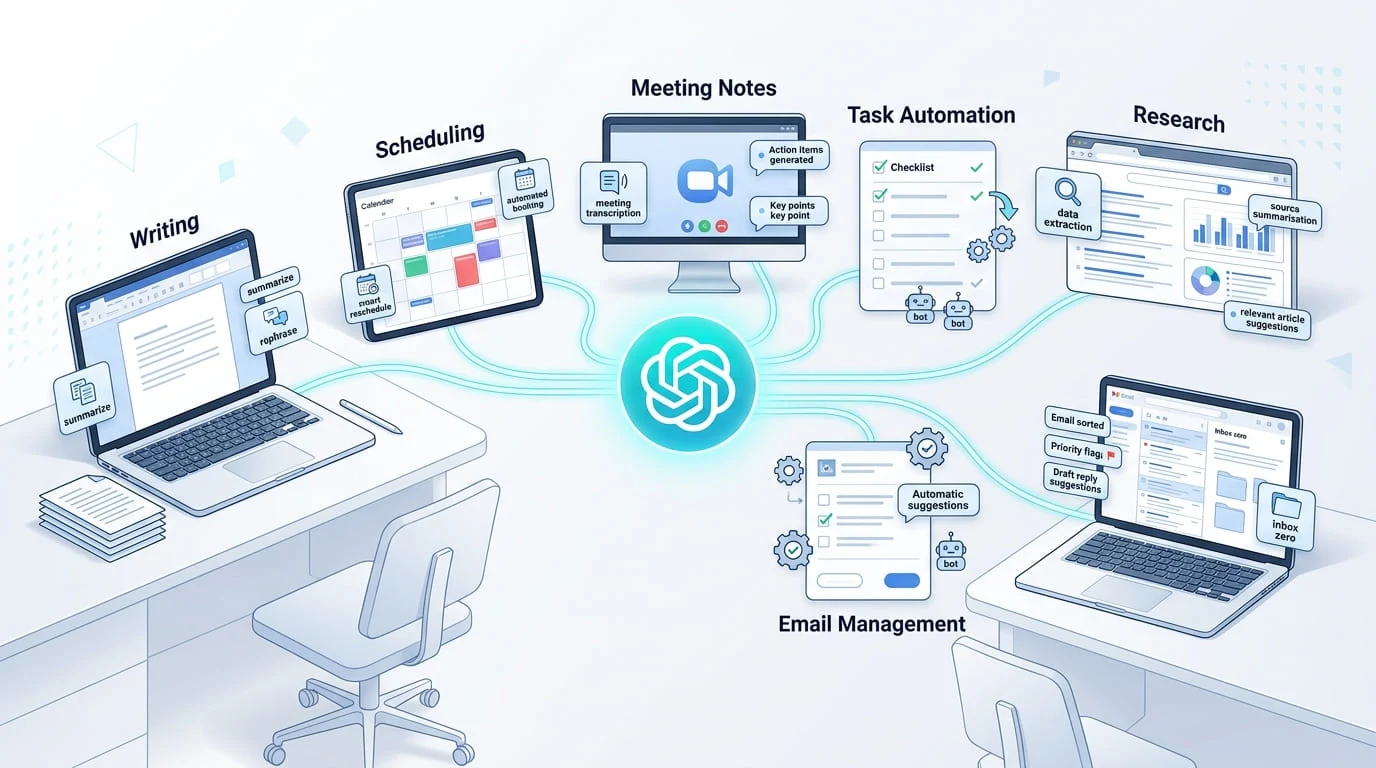
Task and Project Automation
This is where AI moves from "helps me write faster" to "does the thing without me." Automation tools can watch for a trigger a new form submission, a status change, an incoming email and run a multi-step workflow on their own. This isn't a fringe use case anymore either active AI agents across the Microsoft 365 ecosystem alone grew 15x year over year in 2026. If you're managing multiple projects, pairing this kind of automation with a proper Notion setup is one of the highest-leverage combinations I've found Notion holds the structure, and automation handles the repetitive updates.
Where this saves time: auto-updating project statuses, routing incoming requests, and cutting out manual data entry between tools.
Research and Information Gathering
AI research tools can pull, summarize, and cross-reference information across dozens of sources in the time it'd take you to open five browser tabs. They're not a replacement for judgment — you still need to verify what they hand you but they're excellent at doing the first pass of gathering.
Where this saves time: summarizing long reports, comparing sources quickly, and turning scattered research into a structured brief.
Email Management
AI-assisted inboxes can draft replies, summarize long threads, and flag what actually needs your attention versus what can wait. For anyone getting 100+ emails a day, this alone can reclaim a meaningful chunk of the morning.
Where this saves time: drafting routine replies, summarizing long threads before you open them, and triaging what's actually urgent.
How to Start Using AI Productivity Tools
You don't need to adopt all of these at once in fact, that's usually how people give up on them. A few things that actually made a difference for me:
Start with your biggest time sink, not the flashiest tool. If meetings eat your day, start with transcription. If writing is your bottleneck, start there.
Give it two weeks before judging it. Most of the time savings come from adjusting your habits around the tool, not the tool itself.
Don't skip verification. AI drafts and summaries are a starting point, not a final answer, especially for anything research-based.
Layer tools instead of replacing your whole workflow at once. Add one at a time so you can actually tell what's working.
Frequently Asked Questions
What are the best AI productivity tools for beginners? Start with one tool solving your biggest time drain an AI writing assistant if you write a lot, or a meeting transcription tool if calls eat your calendar. Adding tools one at a time makes it much easier to stick with them.
Do AI productivity tools actually save time? Yes, though the amount varies widely. Research from McKinsey's 2026 A global AI survey shows a median of 6.4 hours saved weekly among workers using AI tools in production, with the biggest gains going to people who adjusted their workflow around the tool rather than just adding it on top.